Posts

Showing posts with the label how to

Identify Your Mac AirPort Extreme Chipset

Do the following: Go to "About This Mac" (top left under the Apple logo) Click "More Info..." Choose "AirPort" on the left-hand side (in the "Network" section) On the right-hand side look for "Card Type = AirPort Extreme" The "Firmware Version" underneath should indicate what chipset you have. E.g. "Broadcom BCM43xx"  Hopefully this will help you out. Maybe you want to know this because you're hoping to use Aircrack to do some WEP cracking :). This page lists compatible aircrack chipsets .
Make Your Blog Mobile-friendly!

This is a quick heads up for Blogger bloggers that may have missed it. Blogger now lets you easily switch on an option to present your mobile readers with a special mobile formatted version of your blog. If you've ever read stuff on a mobile device that's not formatted for mobile you'll know how annoying it can sometimes be navigating a non mobiel-friendly web site, even with mobile browsers like Opera doing a good job at solving that issue. To switch on the mobile template view in Blogger, just Go to your blog's "Settings" tab Click "Email & Mobile" Then where it says "Mobile Template (beta)" choose "Yes" and your done! You can hit the "Mobile Preview" button to see what your blog will look like too.

Transfer data from the Nokia 6101

Image
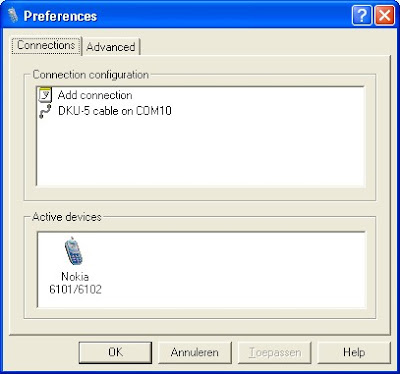
To transfer your data from the Nokia 6101, including the copy-protected ringtones, themes, wallpapers etc you need the following. - 1 DKU-5 data cable - Nokia PC Suite - MobiMB 1. Install the Nokia PC Suite. This will also install the drivers for the DKU-5 cable 2. Then connect the DKU-5 cable to your PC and connect the phone. The cable should be recognised. If not, try another USB port. 3. Install MobiMB and setup as follows. - Go to File -> Settings -> Connections -> Add connection - Choose the Nokia DKU-5 cable connection - Right-click the new DKU-5 connection -> Properties -> Port settings - Choose "COM10 Port 1 on Nokia Adapter". The phone should be recognised. 4. In MobiMB go to File -> Settings -> Advanced and tick "Always show built-in ringtones". 5. Now just copy stuff from MobiMB to your PC. You can even drag and drop.

JMeter Config Element 'CSV Data Set Config' notes

Image
This post is for any other poor souls that can't figure out how to get the values accessed by the CSV Data Set Config configuration element in JMeter into the HTTP Request Sampler (or any other Sampler). For some reason the JMeter User Manual page for the CSV Data Set Config doesn't explain this. The key to getting your values used by your Sampler is to reference your values in the sampler in the following format: ${variable_name} This is shown in the screen captures on the left. Simple when you know how :)

Problem 2.. easy solution :)

The source of my 2nd problem was my FON connection... To be more specific, I couldn't use my internet connection (or so it seemed) with any apps other than Internet Explorer! Then I realised I was using the free signal on my FON router. It dawned on me that either the FON boys don't allow other apps to connect over the free FON connection, or it was simply down to the fact that I wasn't logged into FON, so it wasn't letting any traffic thru. ..Although I'm sure there was a moment when I was definitely logged onto FON... hmm. Anyhow. I decided to connect to my non-FON router and my other apps (Skype, Opera mini etc) are happy again :) Grrreat.